
AI translator for Mac live calls
Start with the workflow, not the buzzword


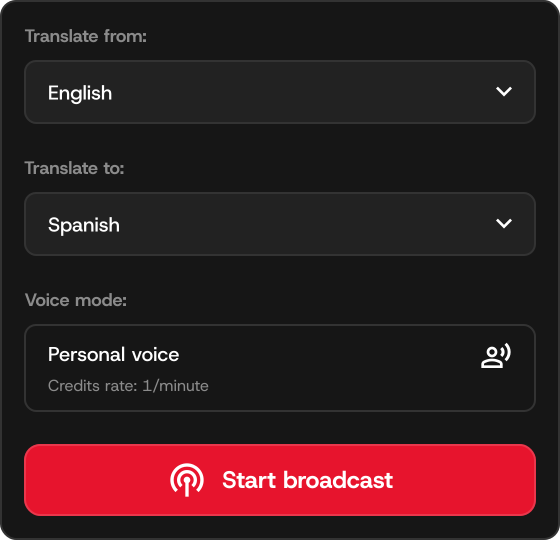
Why desktop users need an audio-routing workflow
Meeting apps expect one microphone input. A translator app needs to hear your real microphone and send translated speech somewhere else. VB-Cable solves that by acting as a virtual microphone.
Speechka keeps those roles clear: your real mic feeds Speechka, and VB-Cable feeds the meeting app when you use Broadcast.
Real microphone
Used by Speechka to hear what you say.
Speechka
Transcribes, translates, and generates translated voice.
VB-Cable
Carries translated voice into the call app as microphone audio.
Where a Mac AI translator fits
The same desktop-side workflow can support different call apps because the meeting app only needs to select VB-Cable as the microphone.
Speechka already has dedicated setup pages for Zoom, Google Meet, Discord, and Microsoft Teams so you can start with the platform you use most.
Zoom
Good for meetings, webinars, demos, and client calls.
Google Meet
Good for browser-based calls, classes, and remote team meetings.
Discord and Teams
Useful for communities, gaming, internal reviews, and business meetings.
What to check before a live call
A Mac translator setup should be tested before the important conversation. Confirm microphone permissions, language settings, VB-Cable installation, and the meeting app's selected input device.
Speechka's Free Trial lets you test the workflow with credits before deciding whether Pro makes sense for regular calls.
Permissions
Allow microphone access for Speechka and your call app.
Language pair
Confirm the source and target language in Speechka.
Device input
Select VB-Cable in the meeting app only when you want translated voice broadcast.
Mac translator setup for meetings vs travel apps
Many translator apps are built for travel, quick text lookup, or phone-to-phone conversation. Those are useful, but they do not always solve the meeting problem: getting translated voice into Zoom, Google Meet, Teams, Discord, or another desktop call app.
A Mac meeting workflow needs predictable audio devices. That is why Speechka uses a virtual microphone route instead of asking every meeting participant to open another page or install another app.
Travel translators
Great for quick in-person phrases, menus, and everyday mobile conversations.
Meeting assistants
Great for notes, summaries, action items, and transcripts.
Speechka on Mac
Focused on outgoing translated voice for desktop calls.
When an AI translator for Mac is the right choice
Use a desktop-side translator when you control the computer joining the call and need your own speech translated. It is especially useful for demos, interviews, training, and community calls where installing a meeting bot would be awkward or unnecessary.
Do not use it as a substitute for professional interpretation when the conversation has legal, medical, financial, or safety consequences. AI translation can be helpful, but the stakes of the conversation should decide the workflow.
Good fit
One speaker needs translated voice output in a standard call app.
Poor fit
You need certified interpretation, every participant translated, or guaranteed verbatim accuracy.
Best next step
Read the platform guide for your meeting app and run a short Free Trial test.
Apply the workflow to your call app
Zoom setup · Google Meet setup · Discord setup · Microsoft Teams setup
Quick answers
Practical details before choosing a live translation setup.
Is Speechka only for Mac?
No. Speechka now supports macOS and Windows, while this page focuses on Mac-specific setup questions.
Why does Speechka use VB-Cable?
VB-Cable lets a meeting app receive Speechka's translated output as if it were a microphone.
Can I switch back to my normal microphone?
Yes. Change the meeting app microphone back to your physical mic when you do not want translated output.
Which page should I read next?
Use the Zoom, Google Meet, Discord, or Microsoft Teams guide depending on your call app.
Keep researching or try the desktop app
Related guides: AI meeting translator for live calls · Real-time voice translator for live conversations
Localized landing pages: Español · Deutsch · Français · Italiano · Português · Українська · Русский
Download Speechka