
AI meeting translator for live calls
Start with the workflow, not the buzzword


What is an AI meeting translator?
An AI meeting translator helps people understand a live meeting across languages. Some tools focus on captions, some create transcripts and summaries, some add an interpreter workflow, and some send translated speech back into the meeting audio.
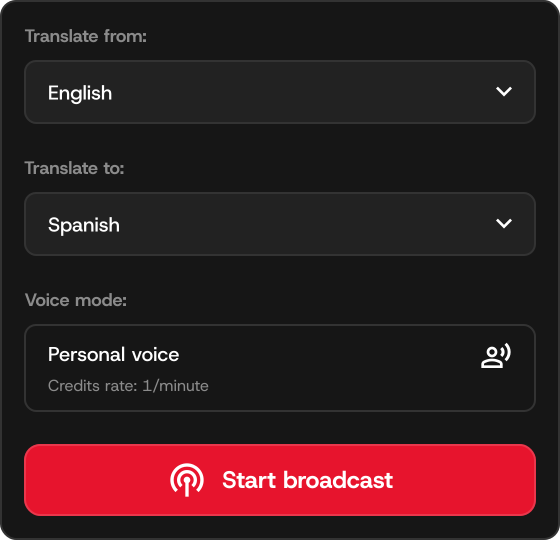
Speechka is in the translated voice category. It listens to your microphone, translates what you say, creates voice output, and routes that output into tools like Zoom, Google Meet, Microsoft Teams, and Discord through VB-Cable.
Captions
Best when participants are comfortable reading translated text while someone speaks.
Meeting notes
Best for reviewing what happened after the meeting, not for speaking in another language live.
Speech-to-speech
Best when the person on the call should hear translated voice in the live audio channel.
How to choose an AI meeting translator
The right tool depends on the call format. A webinar may need captions and interpretation. A one-person demo may only need the presenter to speak in another language. A business meeting may require human review or a professional interpreter.
For Speechka, the strongest fit is a desktop user who needs their own outgoing speech translated into a meeting app without adding a bot participant.
Audio path
Does the tool produce translated voice, or only text captions?
Platform fit
Does it work in the meeting app you already use?
Privacy model
Does it join as a bot, create a shared link, or run locally as your audio input?
How Speechka fits into live meetings
Speechka uses a desktop-side audio workflow. Your real microphone feeds Speechka. Speechka handles transcription, translation, and voice generation. VB-Cable then appears to your meeting app as the microphone carrying translated voice.
This is useful when you want a translated voice to enter the normal meeting audio, rather than asking every listener to open a separate caption page or read chat messages.
Listen
Test translation privately before anyone in the meeting hears it.
Broadcast
Send translated voice into the call when you are ready.
Credits
Usage is counted by live translation minutes, with Free Trial and Pro options.
When captions, bots, or voice translation make sense
Translated captions are often the simplest option when everyone can read comfortably during the call. Meeting bots can be useful when the main job is transcription, summaries, or post-call notes. Human interpreters remain the strongest choice for high-stakes interpretation and formal events.
Speechka is different because it is about the speaker's outgoing audio path. It is not trying to replace every meeting accessibility feature; it gives one desktop user a way to speak and have translated voice enter the existing call.
Use captions
When attendees mainly need readable text and the meeting platform already supports the language pair.
Use bots
When the priority is notes, searchable transcripts, or asynchronous review after the meeting.
Use Speechka
When translated voice should be heard live through the call's normal microphone channel.
AI meeting translator checklist before a live call
The biggest mistakes happen before the meeting starts: the wrong microphone is selected, the target language was not tested, or the audience expected captions while the host prepared voice output. A short rehearsal prevents most of that confusion.
For Speechka, the checklist is practical: create your voice, confirm the source and target languages, use Listen for a sample phrase, select VB-Cable in the meeting app, and only then use Broadcast.
Confirm the audience need
Do they need translated voice, translated captions, a transcript, or a human interpreter?
Run a private test
Use a real meeting phrase, not just a one-word test.
Plan a fallback
Know how to switch back to your normal microphone if the live setup is not right for the call.
Apply the workflow to your call app
Zoom setup · Google Meet setup · Discord setup · Microsoft Teams setup
Quick answers
Practical details before choosing a live translation setup.
Is an AI meeting translator the same as live captions?
No. Captions are text. Some AI meeting translators also create voice output, summaries, or interpreter-style workflows.
Does Speechka translate everyone in the meeting?
Speechka is focused on your outgoing speech, not joining the meeting as a recorder that translates every participant.
When should I use a human interpreter?
Use a human interpreter for legal, medical, high-stakes, regulated, or formal events where accuracy and accountability requirements are strict.
Which platforms should I start with?
Start with the platform guide for your call: Zoom, Google Meet, Microsoft Teams, or Discord.
Keep researching or try the desktop app
Related guides: Real-time voice translator for live conversations · AI translator for Mac live calls
Localized landing pages: Español · Deutsch · Français · Italiano · Português · Українська · Русский
Download Speechka