Microsoft Teams voice translator
Speak in your language and send translated voice into Microsoft Teams with Speechka for Mac and VB-Cable. Speechka keeps product setup simple: create your personal voice, use Listen to test privately, then Broadcast translated speech into Microsoft Teams.
Microsoft Teams voice translator
Speechka for Microsoft Teams
Live translated voice in your meeting audio
Speechka translates your microphone audio in real time and routes the generated voice through VB-Cable, so Microsoft Teams can receive it as a microphone source.
Use it for multilingual meetings, interviews, demos, classes, community calls, and client conversations where spoken translation needs to happen while the call is live.

Real-time meeting translation
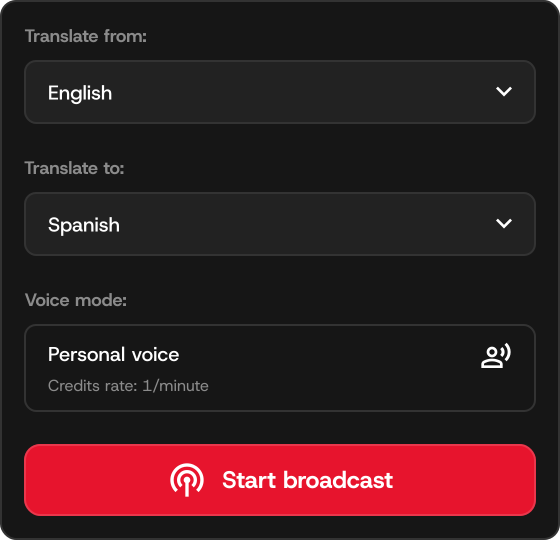
Speak normally while Speechka handles transcription, translation, personal voice generation, and output routing.

Private test before Broadcast
Use Listen to check translation privately, then switch to Broadcast when you are ready for others to hear it.
How it works
Use Speechka with Microsoft Teams
Install Speechka on Mac, create your personal voice, choose source and target languages, then select VB-Cable as the microphone in Microsoft Teams for Broadcast.
Prepare your voice
Record a short personal voice sample and keep your translation language settings ready before the meeting starts.
1
Check with Listen
Test translation privately so you can confirm the app heard and translated the phrase correctly.

Broadcast through VB-Cable
Switch to Broadcast and choose VB-Cable in Microsoft Teams so participants hear the translated voice.
3
Pricing
Start with Free Trial, upgrade to Pro
Free Trial includes 7 days and 10 credits. Pro is $19.99/month with 180 credits monthly, and additional credits are available when you need more live translation time.
Download for MacFree Trial
Free
7 days / 10 credits
Try live translation before subscribing.
Pro
$19.99/mo
180 credits monthly
For regular Microsoft Teams meetings and multilingual calls.
FAQ
Quick answers
Practical setup notes for using Speechka as a Microsoft Teams voice translator.
Does Speechka join my Microsoft Teams meeting?
No. Speechka runs locally on your Mac and sends translated audio through VB-Cable as your selected microphone source.
Can I test before others hear it?
Yes. Use Listen privately before switching to Broadcast for the live call.
Do I need VB-Cable?
Yes. VB-Cable routes Speechka's translated voice into Microsoft Teams as microphone audio.
How is usage counted?
One credit equals about one minute of personal voice translation during Listen or Broadcast sessions.